
Download uTorrent Remote UI – Remote Torrent Management App for Windows, Mac, Android & iOS
Take full control of your downloads from anywhere with uTorrent Remote UI, a powerful and secure mobile application that lets you manage your torrent files on your PC, Mac, or server from your smartphone or tablet. Whether you're at work, on the go, or simply away from your computer, this tool ensures you never miss a beat in your download queue. With seamless integration between your desktop uTorrent client and mobile device, you can start, pause, remove, or prioritize torrents in real time. The app supports multiple languages including English, Chinese, Korean, and Japanese, making it accessible to a global audience. It's free to download and use, with optional premium upgrades for advanced features. uTorrent Remote UI is ideal for users who value convenience, flexibility, and remote access to their digital content.
Why uTorrent Remote UI Is a Game-Changer for Torrent Management
Managing torrents from your desktop has always been straightforward, but what if you're not at your computer when a download finishes—or when a new file needs to be added? That’s where uTorrent Remote UI steps in as a reliable, user-friendly solution. This mobile application transforms your smartphone or tablet into a fully functional remote control for your uTorrent client, giving you complete oversight and command over your downloads. The app is designed with simplicity in mind: after installing the uTorrent client on your PC or Mac, you enable remote access in the settings, assign a username and password, and then connect your mobile device via the uTorrent Remote app available on Android and iOS.
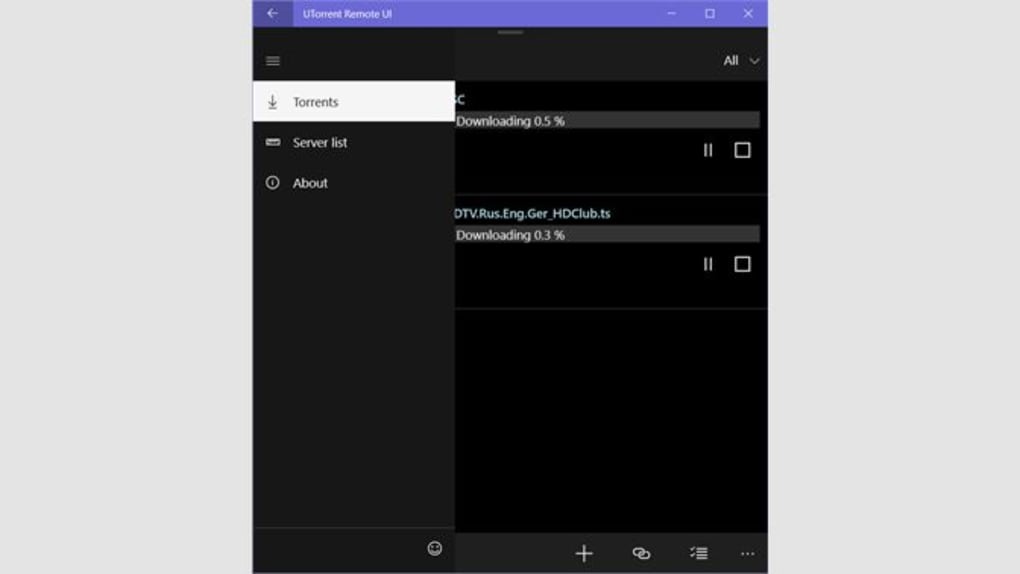
One of the standout features is its secure connection protocol. Even if your device is behind a firewall or NAT, you can still access your downloads by configuring an alternate listening port or using a hardware/software firewall to allow external connections. This flexibility ensures that remote access remains reliable, regardless of your network setup. The interface is clean and intuitive, displaying your entire torrent list with real-time status updates—progress, speed, seeders, and download times. You can also search for torrents directly within the app, add new ones with a magnet link or .torrent file, and even browse local files stored on your system.
For users who frequently travel or work remotely, this level of control is invaluable. Imagine pausing a large download during your commute or resuming a paused torrent while relaxing at home. The ability to manage your digital library from anywhere enhances productivity and convenience. Plus, the app supports multiple language options, ensuring accessibility for non-English speakers. Whether you're downloading movies, software, or game updates, uTorrent Remote UI keeps you in charge—no matter where you are.
Key Features and How to Use Them Effectively
uTorrent Remote UI is packed with features that go beyond basic remote access. Here’s how you can leverage them to maximize your torrenting experience:
- Remote Torrent Control: Start, pause, resume, or delete torrents from your mobile device with just a tap.
- Real-Time Monitoring: View live download/upload speeds, completion percentages, and active connections.
- File Browsing: Access and preview files stored on your PC or Mac directly through the app.
- Advanced Settings Access: Adjust bandwidth limits, queue priorities, and port configurations remotely.
- Multiple Language Support: Switch between English, Chinese, Korean, and Japanese for a personalized experience.
- Secure Login & Authentication: Use a custom username and password to protect your downloads from unauthorized access.
- Port Configuration Flexibility: Set an alternate listening port if your router or firewall blocks default ports.
Using the app is straightforward. First, ensure your uTorrent client is updated and running on your desktop. Then, go to Preferences > Connection and enable “Remote Access.” Set a strong username and password, and optionally change the port (default is 8080).
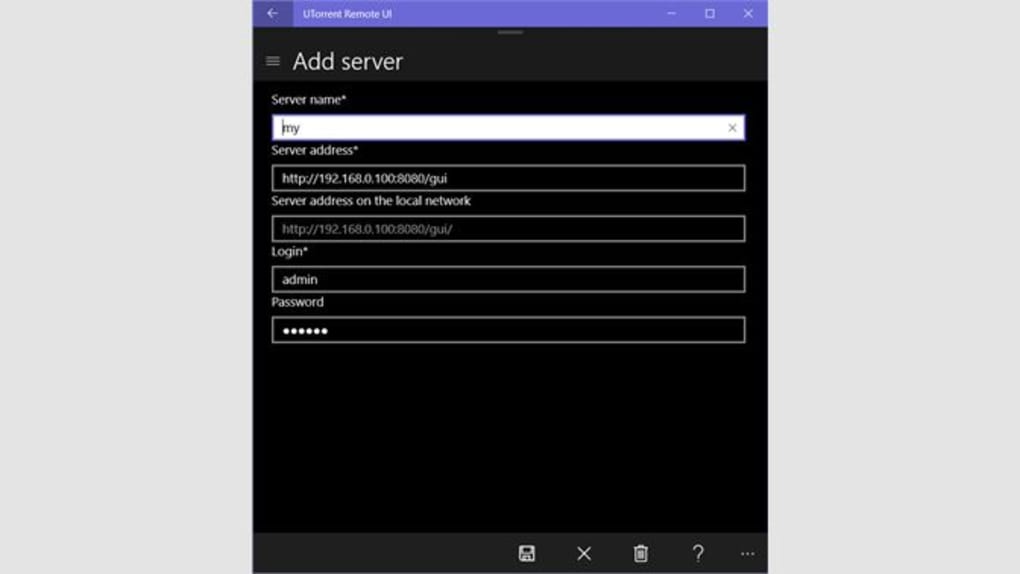
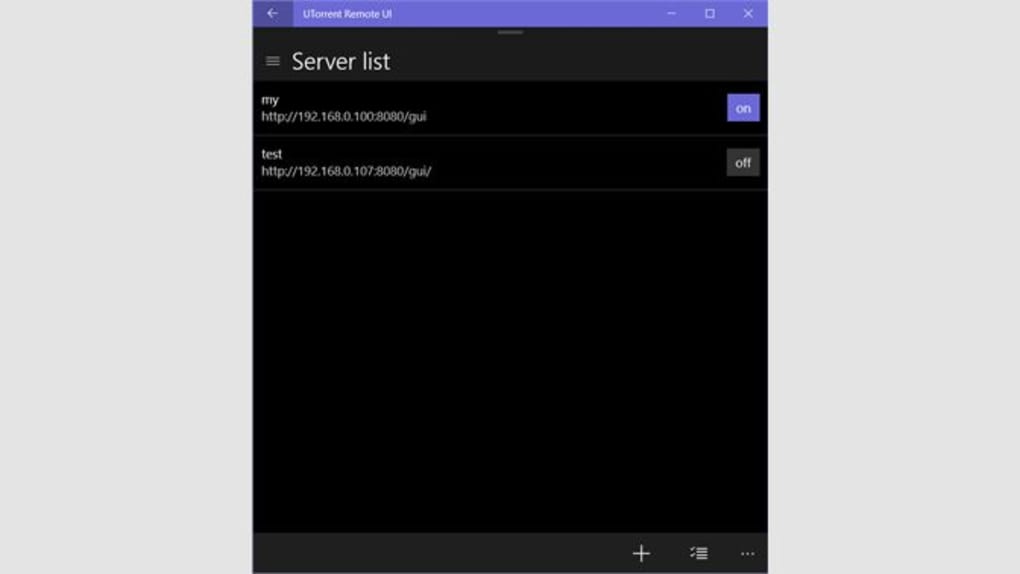
On your mobile device, download the uTorrent Remote app from the Google Play Store or Apple App Store. Open the app, enter your PC’s IP address (or use the auto-discovery feature), along with the username and password. Once connected, you’ll see your full torrent list and can begin managing downloads instantly.
For optimal performance, make sure your PC is always on and connected to the internet. If you're using a dynamic IP, consider using a dynamic DNS service to maintain consistent access. The app also supports HTTPS connections for added security, especially when accessing your downloads over public Wi-Fi. With these settings, you can enjoy a seamless and secure remote experience.
Compatibility, Installation, and System Requirements
uTorrent Remote UI is designed for broad compatibility, supporting all major operating systems. On the desktop side, it works seamlessly with Windows 7 and later, macOS 10.12 and above, and even Linux (via the uTorrent client for Linux). For mobile devices, the uTorrent Remote app is available for Android 5.0+ and iOS 11.0+. This wide range of support ensures that users across different platforms can enjoy remote control functionality.
Installation is simple and takes less than five minutes. On your PC or Mac, ensure you have the latest version of the uTorrent client installed. Visit utorrent.com and download the desktop client.
After installation, open the app and navigate to Preferences > Connection. Enable “Remote Access,” set a username and password, and choose a port (default is 8080). If you're behind a firewall or router, you may need to forward the port or use a dynamic DNS service.
On your smartphone or tablet, open the Google Play Store or Apple App Store and search for “uTorrent Remote.” Download and install the app. Launch it, enter your PC’s local IP address (e.g., 192.168.1.100), your username, and password. The app will attempt to connect. If it fails, double-check your firewall settings, port forwarding, and network configuration. Once connected, you’ll see your full torrent list and can begin managing downloads.
For users with advanced setups, the app also supports HTTPS connections and can be configured with custom URLs. This makes it suitable for both home users and small businesses managing large download queues. The software is free to download and use, though some premium features like advanced scheduling or priority rules may require a paid subscription.
Pros, Cons, and Frequently Asked Questions
Pros
- Free to download and use with basic remote control features
- Supports multiple platforms: Windows, Mac, Android, iOS
- Intuitive, responsive interface with real-time updates
- Secure login with customizable username and password
- Allows remote file browsing and download management
- Multiple language options for global accessibility
Cons
- Requires desktop uTorrent client to be running and connected
- Port forwarding may be needed for external access
- Some advanced features require a paid subscription
- Interface can feel slightly outdated compared to modern apps
- Not available for Linux desktops via official app (though client works)
FAQ
- Is uTorrent Remote UI free to use?
- Yes, the core features of uTorrent Remote UI are completely free. You can manage your torrents, view download progress, and control your queue without any cost. However, certain advanced features like priority scheduling or enhanced security may require a paid subscription.
- Can I use uTorrent Remote UI on my iPhone or Android phone?
- Absolutely. The uTorrent Remote app is available for both iOS and Android devices. Simply download it from the Apple App Store or Google Play Store and connect it to your desktop uTorrent client.
- Do I need to forward ports to use uTorrent Remote UI?
- Port forwarding is recommended if you want to access your torrents from outside your local network. For local access, it’s usually not required. However, if your router blocks the default port (8080), you can set an alternate port in the uTorrent settings.
- Can I browse files on my PC from the remote app?
- Yes, once connected, you can browse through your local files stored on your PC or Mac directly from the app. This is useful for checking completed downloads or accessing specific files without logging into your computer.
- Is my data secure when using uTorrent Remote UI?
- Yes, the app uses secure authentication with username and password. For added security, you can enable HTTPS connections and use strong credentials. Always avoid using public Wi-Fi without a VPN when accessing your downloads remotely.
Final Verdict: A Must-Have Tool for Remote Downloaders
uTorrent Remote UI stands out as one of the most practical and accessible tools for managing torrents on the go. Whether you're a casual downloader or a power user managing large media libraries, this app delivers reliable remote access with minimal setup. Its compatibility with Windows, Mac, Android, and iOS ensures broad usability, while the secure login and real-time monitoring features provide peace of mind.
While the interface may not be the most modern, its functionality more than compensates. The ability to control your downloads from anywhere—whether you're at work, traveling, or relaxing at home—makes it an essential companion for anyone serious about efficient torrent management. The free version offers robust features, and the optional upgrades provide value for advanced users.
Download uTorrent Remote UI today and take control of your downloads—anytime, anywhere.







